Showing posts with label iPhone Tips and Tricks. Show all posts

Wednesday, June 4, 2014

Troubleshooting & Fixes: Cydia Crash After iPhone Jailbreak

Sometime users had a problem with cydia crashed every time they launch after jailbreak. one of the solution is to go through the whole jailbreak process again and re-install Cydia. But this is consume more time however. According by iPhoneDownloadBlog, the crash issue is due to some corrupted repositories. Here is the best solution to overcome this problem.

1. Install and launch iPhone Explorer, or use SSH (Cyberduck for Mac or WinSCP for Windows) .You can checkout my tutorial here on how to SSH for Windows.

2. Navigate to /var/lib/apt/lists and delete all files under this folder except the “partial” folder.

3. Navigate to /var/lib/dpkg/updates. Remove any files inside this folder.

4. Reboot your iPhone. Once boot up, you should be able to launch Cydia properly.

May this short tips works for you. Good luck!

Thursday, May 29, 2014

Untethered Jailbreak Using Spirit (Compatible With iPhone 3GS, iPad and iPod Touch)

A new jailbreak tool called “Spirit”, developed by Comex. The tool also supports untethered jailbreak for iPod touch, as well as, the iPad using the latest firmwares. The Spirit tool is free for download and supports both Mac & Windows platform. The jailbreak process via Spirit is also simple and straight-forward. By just one-click, it then jailbreaks your iPhone, iPad or iPod touch automatically.

But before you download the tool, please read through the following highlights carefully:

  • Spirit is not a carrier unlock – Don’t mix Spirit with other iPhone unlock tool (e.g. blacksn0w). You can only use Spirit to jailbreak your device. It will not unlock your iPhone.
  • If you are already using a tethered jailbroken iPhone 3GS and want to use Spirit for untethered jailbreak, you will need to restore your device via iTunes. However, if you are using unlocked iPhone 3G or 3GS, do not upgrade to iPhone OS 3.1.3 or else you will lose the unlock. Please stay with iPhone OS 3.1.2 for jailbreaking.
  • Spirit is an untethered jailbreak for iPad, iPhone, and iPod touch on the latest firmwares, including firmware 3.1.2, 3.1.3, and the iPad-exclusive 3.2. So, if you are using lower version of firmware (aka iPhone OS), you will need to upgrade your device to the latest firmware version before using Spirit.
  • Spirit does not hacktivate your iPhone. To use it, it expects your device has already been activated. In other words, if your iPhone is stuck at the “Connect to iTunes or Emergency Call screen”, Spirit will not work for you.
  • Make sure you’re using iTunes 9 or up before using Spirit.
To download this jailbreak tool, you can check out from its official website. It’s free for download.

Tuesday, May 27, 2014

How To Install Safari Download Manager 1.4 For Free

This is an updated Safari Download Manager 1.4 is cracked .deb file and only applicable with iPhone jailbroken. Safari Download Manager is an extension that adds a powerful, highly-configurable download manager to the iPhone's web browser. Like never before, you can take control over downloaded file types, and harness the true power of the network connection on your device.

Note: Safari Download Manager not allow you to view your downloaded files. It's recommend installing iFile or another comparable file manager. Safari Download Manager also not works on iPhone OS 2.x.

New Features:
  • Add support for tap&hold-to-download! Download all sorts of files by holding a link until you get the standard "Open in New Window" popup, and tap Download!
  • Add support for choosing your download directory (currently limited to places inside Library/Downloads). This must be done for every download. We plan to make this configurable and sticky for 1.5.
  • Fix landscape rotation bugs of all sorts.
  • Exit the download panel when suspending Safari to avoid re-entry-related bugs.


How To Install Cracked Safari Download Manager
Alternate Ways To Install:
Ssh your iPhone. You may see instruction on how to install .deb file via SSH. And make a folder called AutoInstall in/var/root/Media/Cydia/ so you have /var/root/Media/Cydia/AutoInstall which is case sensitive and drop this debs file in the autoinstall folder, reboot and respring your iPhone.

Saturday, May 24, 2014

Transfer Photos Directly From Your Digital Camera to iPad Using Camera Connection Kit

With iPad Camera connection kit, you can import photos and videos from a digital camera or SD card directly to your iPad. The kit also supports most popular photos services including Flickr, MobileMe and others. What’s more, the iPad Camera Connection Kit costs a miserly $29.

The Kit provides two simple ways of importing your photos. One way is use your SD card connector to upload photos via a SD card. The other option is to use the USB connector so that you can connect your camera directly to the iPad. The usage is intuititve – as soon as you plug the connector to your iPad, it opens the photo app and shows the photos on your card. It may take a while for all your photos to show up, so be patient. You can then either choose some photos or all photos to be imported. Further, TidBITS reports that you can use a headset to make VoIP calls over Skype, and that the audio quality is excellent. You can also use a Bluetooth headset with the iPad. See this Demo video.

Monday, May 19, 2014

PS3 Hacked For Real


A fellow user mentioned how funny it is that GeoHot left the iphone scene but then a ps3 jailbreak comes out, how ironic. This ps3 modchip is a usb thumb drive loaded with the hacking software. All you have to do is plug it in and follow the instructions and your hacked. You can purchase one for about 165.00 over at http://www.ozmodchips.com/ps-jailbreak.


Friday, May 16, 2014

Tip To Prevent Accidental In-App Purchase On iPhone

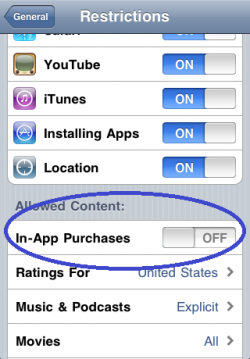
It’s actually quite simple to turn off in-app purchases – simply go to Settings -> General -> Restrictions (enter your 4-digit security pass code) -> Allowed Content -> In-App Purchases and turn the thing to OFF! If you’ve not set a 4-digit security code on your iPhone, now is a good time as ever to do so. Kids love clicking various buttons on the iPhone touchscreen and you can never rule out the possibility of accidental app purchases, therefore it’s better to be safe than sorry. And trust me, accidental app purchases are fairly common especially with kids.

Usually, the in-app purchases require the iTunes password to be entered. But if you’ve already entered the password in the last 15 minutes even for a free app, the in-app purchase does not prompt for password again.

Thursday, May 5, 2011

Tip To Use Multiple iTunes Libraries on a Single Computer

Apparently you do not want to share your own iTunes library with others. You want to keep your own library and create a new one for other users. There is a hidden feature that you may not know. iTunes does allow you to create separate library for individual user. Just hold down the Option key (for Mac User / Alt key (for Windows user) each time you launch iTunes. You’ll then be prompted with options to create a new iTunes library or choose an existing iTunes library.

Let’s say you’re now sharing the computer with your mum and dad. Simply select the “Create Library…” option and create a new library for your mum. Do the same procedures again to create the library for your dad as well.
Later when your dad needs to use iTunes, tell him to hold down the option key (for Mac) or Alt key (for Windows) when launching iTunes. Then select the “Choose Library…” option and select his own iTunes library folder.

By using this technique, each of you can keep music, movies or apps in a separate iTunes library. You can have a complete control of your own library. You can add/delete music or sync your iPhone without affecting other’s iTunes library. But please note that this method only works on iTunes 9.2 or up.

If you want switch your iTunes library to you new computer you may check it out here.

Wednesday, May 4, 2011

Transfer iPhone Apps Between Computers Using iTunes (Home Sharing)

Let’s say you have purchased an iPhone app via iTunes on your desktop. How do you transfer it to your laptop? Since the release of iTunes 9 in September 2009, Apple introduced a new feature in iTunes called Home Sharing. It allows multiple computers (up to five) in the same local network to copy and share music, movies, apps and other media between computers.

It’s not a hidden feature. But even Apple has updated the iTunes to version 10, not every user have tried it. Here I’ll walk you through this fantastic feature and show you how you can transfer apps between computers easily. In the walkthrough guide, I’ll show you how to transfer the apps from desktop to your laptop so you keep the app library in both desktop and laptop in-sync.
NOTE: Before we start, make sure you have the following three things:
  • Both computers are installed with iTunes 9 or later.
  • You already have an Apple ID associated with an iTunes or App Store Account.
  • Both computers are connected to the same local network either via Ethernet or WiFi.

Enabling Home Sharing on Your Desktop

1. First, open iTunes on your desktop.
2. Click “Advance” and select “Turn On Home Sharing”.
3. Select the Home Sharing icon on the left-hand side of iTunes

4. You’ll be prompted to provide your iTunes account. Simply enter your iTunes or App Store account name and password.

5. Click “Create Home Share” to enable home sharing and then click “Done” to complete the registration.

Enable Home Sharing on Your Laptop

1. On your laptop, launch iTunes.
2. Go over the above 5 steps again to enable Home Sharing on your laptop. Make sure you use the same iTunes account to login Home Sharing.
3. For the first-time setup, you’ll be prompted with message “Home Sharing could not be activated because this computer is authorized for the account. Would you like to authorize now?“. Simply click “Yes” to confirm. iTunes will then show you a message telling you that the authorization is successful.


Transfer Apps from One Computer to Another

If you successfully complete the above procedures, you should now be able to access the desktop’s iTunes library from your laptop computer.
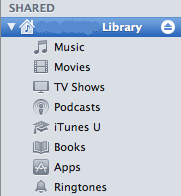
1. Just click the Home Share to connect to under Shared on the left-hand side of iTunes.
2. Select the “Apps” folder and pick the app you want to transfer. Say, let’s transfer the Cut the Rope app. Just click on it and drag it to your own library to transfer the app.

Obviously you’re not limited to transfer apps from other computers. You’re allowed to transfer other media such as music, movie, TV shows, etc.

Automatically Transfer Apps Between Computers

The above procedures let you transfer app (or other iTunes content) manually. iTunes actually offers an option for you to transfer these content in an automatic way. To enable automatic transfer,
1. Just select “Home Sharing” library and select “Settings”.
2. Select the content for automatic transfer.

In case you want to turn off “Home Sharing” after the app transfer, just click “Advanced” and select “Turn Off Home Sharing”. Enjoy

Monday, August 30, 2010

Tips: Enable Emoji Icons On iOS 4

Emoji icons are picture characters that are very popular in Japan for text messaging. Nearly all mobile phones in Japan have Emoji icons built-in. Since the release of firmware 2.2 in late 2008, Apple has brought Emoji icons to iPhone. However, it is for iPhone users using Softbank network in Japan only. For those who want to use Emoji icons on iPhone, simply follow the step-by-step procedures:


Step 1: Launch App Store and search for "Emoji Free". Simply install it and its free apps.

Step 2: Once installation is done, launch it and click the “ok, lets do this!” button to proceed.

Step 3: The process only takes a few seconds. After that, your iPhone is allowed to use Emoji icon.

Step 4: Click HOME button to go back to home screen. Tap “Settings” -> “General” -> “Keyboard” -> “International Keyboards” -> “Add New Keyboard…”. Tap on “Emoji”.

Step 5: You should notice a new Emoji keyboard installed after it goes back to the previous screen. You can then launch any iPhone app to try out the feature. To switch between different keyboards, you can tap on the “globe” button. In case it doesn’t work, restart your iPhone and try again.

Sunday, August 15, 2010

How To Install 3G Unrestrictor 2.2-3 For Free

This is an updated 3G Unrestrictor 2.2-3 is cracked .deb file and only applicable with iPhone jailbroken. This app unrestricts Apple’s download limit in appstore.app and itunes.app so in turn you can download large apps without wifi. To make it even better this makes youtube video quality great so no more blurry videos.

Last but not least this now unrestricts phone.app which is facetime for iphone 4 users, yeah you read it right facetime over edge and 3g. You can try before you buy but i highly recommend buying this app from the cydia store for $3.99.


How To Install 3G Unrestrictor 2.2-3

Alternate Ways To Install:
Ssh your iPhone. You may see instruction on how to install .deb file via SSH. And make a folder called AutoInstall in/var/root/Media/Cydia/ so you have /var/root/Media/Cydia/AutoInstall which is case sensitive and drop this debs file in the autoinstall folder, reboot and respring your iPhone.


Friday, July 30, 2010

Tips To Enable iOS 4 Multitasking on iPhone 3G

Due to the limited memory and slower CPU on iPhone 3G, multitasking is intentionally disabled by Apple. But this shouldn’t limit iPhone jailbreaker from using it. With jailbroken iPhone, there are a couple of hacks available via cydia that lets you enable the multitasking feature.

NOTE: If you have already use redsn0w or PwnageTool to enable the multitasking feature during jailbreaking, DO NOT install the hack. If you want to use any of the above hacks, you’ll need to jailbreak your iPhone but without selecting the multitasking option in the jailbreak process of redsn0w/PwnageTool.

It’s a cydia hack called “Features”. The hack lets you enable the missing multitasking feature via Winterboard theme. The package comes with a “multitasking” theme. You can simply enable the theme to turn on the multitasking feature.

To install the hack, you can fire up cydia and search for “Features” to locate the package. Please note that the hack is only for iPhone 3G running iOS 4. If you are using iPhone OS 3.1 or lower, the hack will not work for you.


zToggle


Developed by Razi Iqbai, zToggle is another cydia hack for you to enable the multitasking feature. Same as “Features”, the hack is only for iPhone 3G running iOS 4. Please don’t install it on other models of iPhone.

Once you install the hack, launch zToggle and flip the “Multitasking” switch to ON. Then follow the instruction to respring your iPhone to effectuate the change. You’ll be able to use multitasking after the respring.


Both hacks are free, but zToggle offers a better interface for you to toggle between the multitasking feature.

Sunday, June 13, 2010

Netflix Hacked On iPhone


I needed the mediaplayer frameworks from an iPad [/System/Library/Frameworks/MediaPlayer.framework], thanks to one of your forum members, I was able to get that. Then, it still wouldn’t work. Noticing my winterboard theme was overriding the mediaplayer layout I disabled it, retried the app and viola, it worked! All that had to be changed was a couple lines in the applications info.plist file and the mediaplayer frameworks, along with a manual install/permissions. (My other apps requiring mediaplayer still run fine.)

But, having said that, I see why Netflix hasn’t released an iPhone client yet. Reasons why:
● Huge battery drain – 25% of battery for around 15min of streaming, drains pretty quick while browsing the app as well.
● Crashing – I suspect memory is the issue here, and also probably because it’s made for another device. Happened when browsing too fast through the app(lots of clicks).
● 3G Speed – Takes forever to load the app and to start streaming (does work though)

[Via iclarified.com]

Thursday, June 3, 2010

How To Untethered Jailbreak for iPhone OS 3.1.3 Using Spirit

As usual, before you consider jailbreaking your iPhone, remember to read the requirements carefully. If you have anything unclear, just leave your question in the comment. First and foremost, Spirit is NOT an unlock tool. If you are looking for unlock solution on 3.1.3, this is not for you. Spirit is just a tool that lets you jailbreak (untethered) your iPhone and with cydia installed. You may read this the information about Spirit here.

Before your proceed, you have to do the following here:
  • Make sure you are using iTunes 9.0 or up
  • You should be using either iPhone OS 3.1.2. or 3.1.3. For those using iPhone 3G/3GS and needs to stay unlocked, please remember NOT to upgrade to iPhone OS 3.1.3.
  • Your iPhone should be activated before using Spirit. That means, it should not be in the emergency screen or connect to iTunes screen
How to Jailbreak iPhone Using Spirit

1.
Before you proceed to jailbreak process, remember to sync your iPhone with iTunes to backup all your data.

2. Download Spirit jailbreak tool from here (Windows / Mac ) and extract the zip file.

3. Launch the Spirit application

4. Once the Spirit tool is launched, plug into your iPhone via USB and the tool detects your current iPhone OS version. Simply click the “Jailbreak” button.


5. Your iPhone will be restarted and goes through the Spirit jailbreak process. Once completed, your iPhone is jailbroken with cydia installed. Enjoy!

Tuesday, June 1, 2010

NAVIGON MobileNavigator France

Category: Navigation
Price: $119.99
Size: 517MB

Latest version: 1.5.0

The NAVIGON MobileNavigator fits in seamlessly with the operating concept of the iPhone. The application includes the latest map material from the market leader NAVTEQ and can be used without an Internet connection, which is of enormous benefit abroad, for example, as no extra charges are incurred. With the NAVIGON MobileNavigator you can transform your iPhone into a fully functional mobile navigation system that is every bit as good as the multi-award-winning personal navigation devices from NAVIGON in terms of its user-friendliness and features.

Features and range of functions:
- Speed Assistant with adjustable audio-visual warning
- Day and night mode for map display
- Direct access and navigation to contacts saved in the iPhone’s address book
- The latest NAVTEQ map material
- Navigation is automatically resumed after an incoming phone call
- 2D and 3D map displays (bird’s-eye view)
- Quick access to user-defined POIs in the area and along the route
- Take Me Home function with a single click
- Automatic language selection to match the iPhone’s user language


Included maps:
Albania, Andorra, Belarus, Belgium, Bosnia-Herzegovina, Bulgaria, Denmark, Germany, Estonia, Finland, France, Gibraltar, Greece, United Kingdom, Ireland , Italy, Croatia, Latvia, Liechtenstein, Lithuania, Luxembourg, Macedonia, Monaco, Montenegro, Netherlands, Norway, Austria, Poland, Portugal, Romania, San Marino, Sweden, Switzerland, Serbia, Slovakia, Slovenia, Spain, Czech Republic, Hungary, Vatican
.

Compatible with iPad, iPhone and iPod touch and minimum requires is iPhone OS 3.0 firmware updated or later. You can purchase via direct iTunes link or download cracked .ipa file here:

http://www.zshare.net/download/75181983fad7e9a8/